
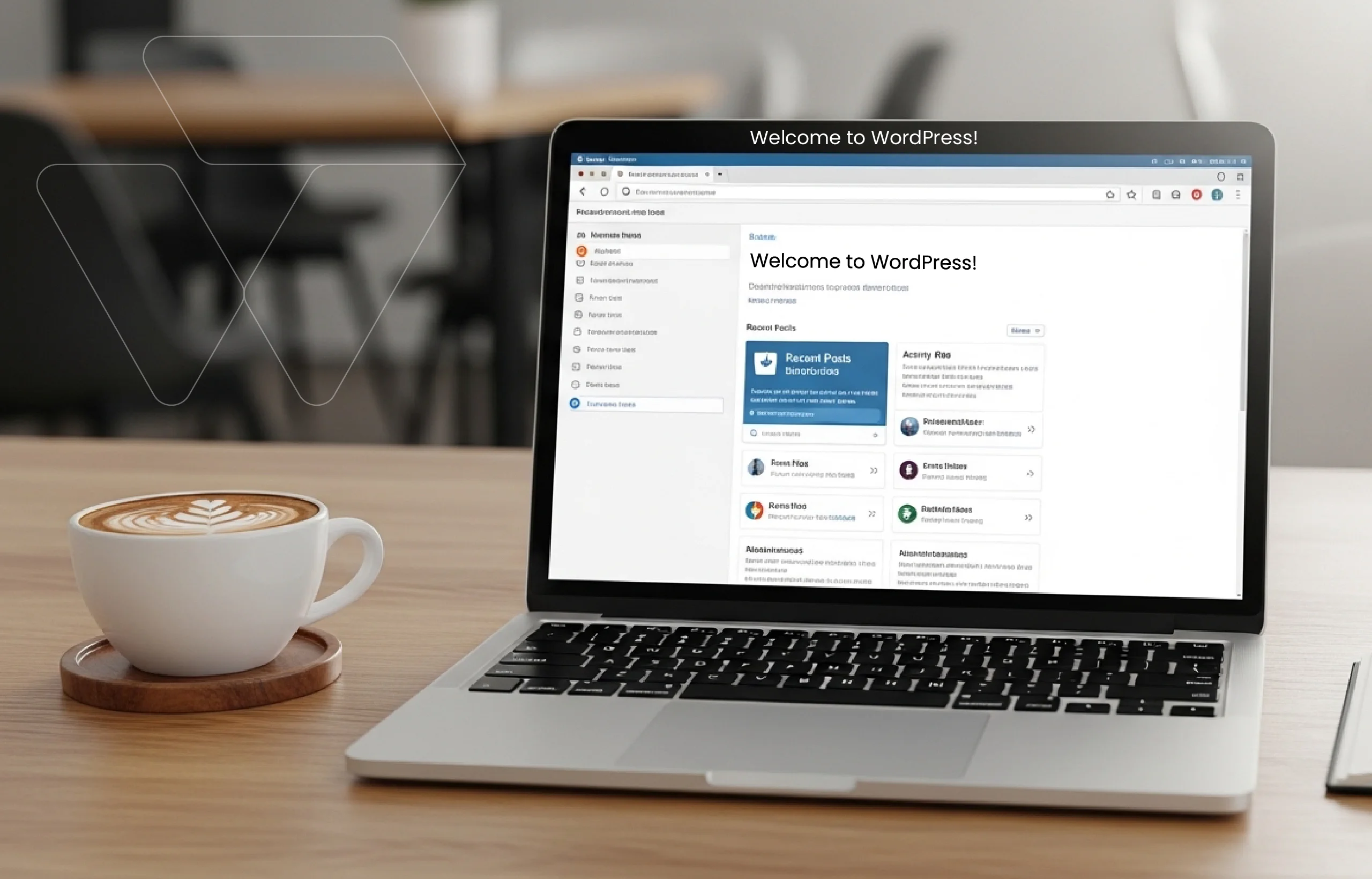
How to Install WordPress in 5 Minutes: The Ultimate Guide
If you’re looking to learn how to install WordPress, you’re already heading in the right direction. WordPress is the leading content management system around the world. It powers blogs, business websites, online stores, and even large media platforms.
The best part? The installation process is simpler than many people assume. You don’t need advanced coding skills or a technical background. You just need reliable hosting, a domain name, and clear steps to follow.
Let’s break it down step by step. We’ll cover automatic installation, manual installation, and local installation. By the end, you’ll know the right method and how to use it.
How to Install WordPress Using cPanel?
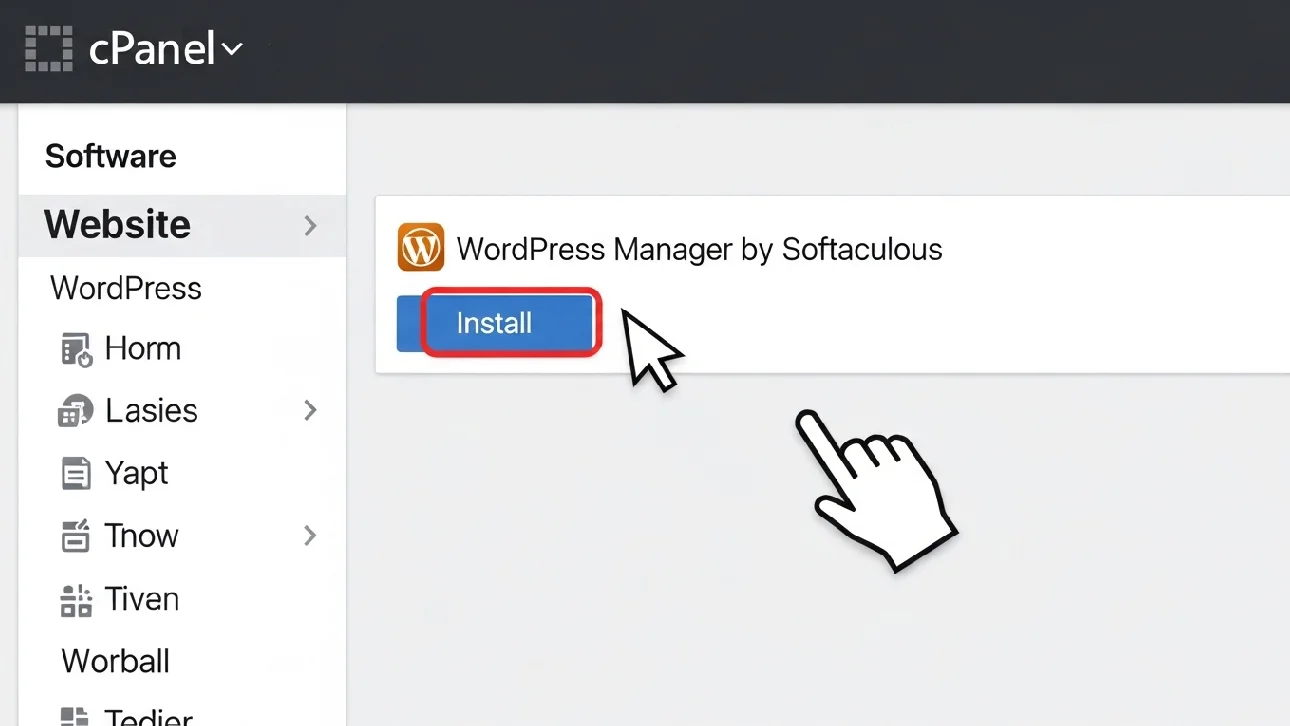
For most beginners learning how to install WordPress, using cPanel is the easiest and quickest option. Many hosting providers include a one-click automatic installation tool like Softaculous.
This method removes technical complexity. You don’t have to manually set up PHP files or build a MySQL database yourself. The system handles everything behind the scenes.
Here’s how the process works:
- Log in to your hosting account
- Open cPanel
- Click on WordPress under Softaculous
- Choose your domain name
- Enter your site title and admin details
- Click Install
Within minutes, your website is live. You can sign in to your dashboard at yourdomain.com/wp-admin.
Automatic installation is ideal for beginners because it’s fast, safe, and reduces setup mistakes while saving time.
Launch Your WordPress Site the Right Way
Skip the setup stress—let our team handle your installation cleanly, securely, and built for long-term performance.
What Happens Behind the Scenes During Installation?
When WordPress is installed, several technical steps happen automatically.
First, the system uploads core PHP files to your server. These files control how your site functions. Then, it connects those files to a MySQL database, which stores your posts, pages, and settings.
The installation process also creates:
- An admin account
- Default themes
- Basic configuration files
- Database tables
All of this takes only seconds with automatic installation. That simplicity is intentional. WordPress handles the technical complexity, letting you focus on building and managing your site.
Understanding this setup helps you manage your website more effectively later.
Also Read: Top Website Development Tools That Make Building Faster, Easier, and Smarter
How to Install WordPress Manually Step by Step?
Manual installation gives more control. It’s beneficial if your host doesn’t offer automatic tools or if you want a better understanding.
Here’s the manual process explained clearly.
Step 1: Download WordPress Software
Go to WordPress.org and download the latest version. Always use the official source to reduce potential security risks.
Step 2: Upload Files to Your Hosting Server
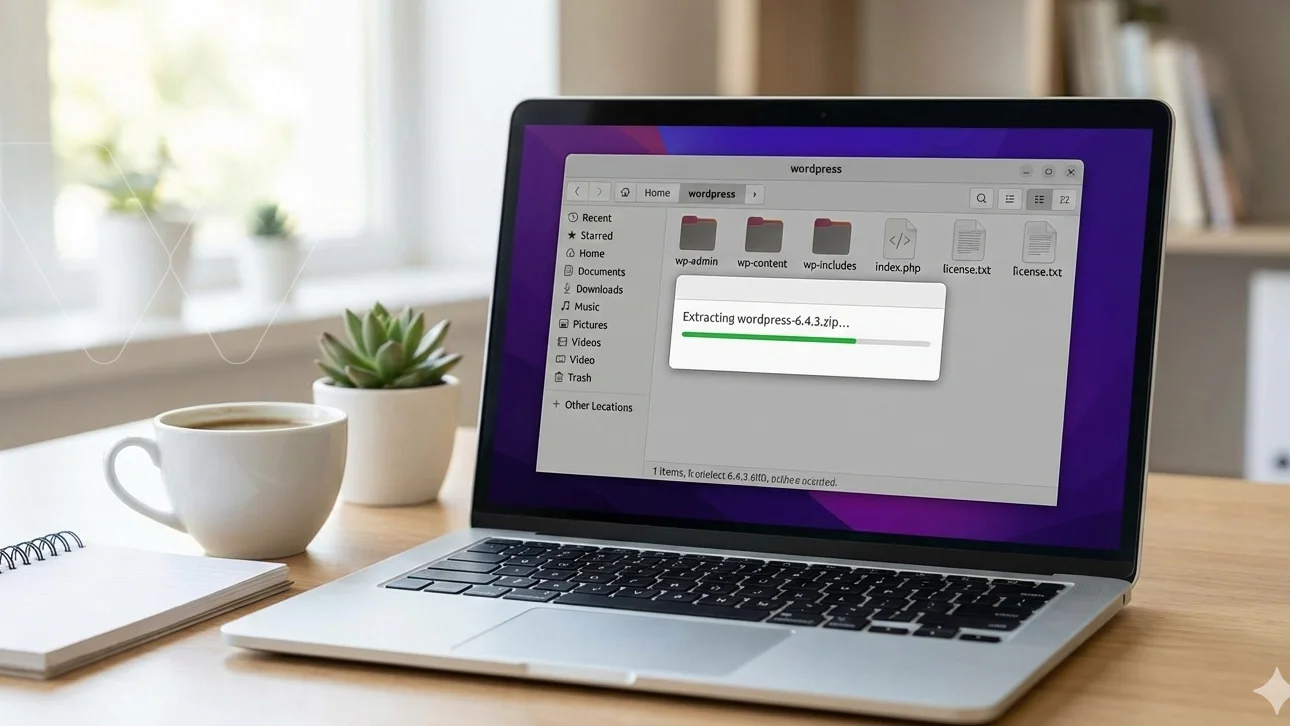
Open File Manager inside cPanel. Place the WordPress ZIP file inside your public HTML folder. Extract the files after uploading.
You may also use an FTP client such as FileZilla if you prefer.
Step 3: Create a MySQL Database
Inside cPanel:
- Open MySQL Database Wizard
- Create a new database
- Create a new user
- Assign the user full privileges
This database connects to your WordPress installation.
Step 4: Run the Setup Script
Visit your domain in a browser. WordPress will ask you to provide your database details.
Enter:
- Database name
- Username
- Password
- Host (usually localhost)
Click Submit. Then create your admin username and password.
Manual installation takes longer, but it gives you a clearer understanding of how WordPress works behind the scenes.
Can You Install WordPress on Localhost?
Yes, and it’s a smart option if you want to test everything before going live. Local installation means installing WordPress on your computer instead of a live server.
You’ll need tools like:
- XAMPP
- WAMP
- MAMP
These tools create a local server environment with PHP and MySQL installed.
Once installed:
- Create a database using phpMyAdmin
- Place WordPress files in the htdocs folder
- Run the setup from your browser
Local installation lets you experiment freely without the risk of breaking a live website. Once testing is complete, many businesses move toward custom WordPress development for businesses to ensure their live site is secure, optimized, and built to scale.
It’s especially useful for:
- Testing themes and plugins
- Learning how WordPress works
- Building a full website before launch
At Web Dev Studioz, local environments play an important role in our development process. It allows safe testing without affecting a live site.
What Should You Do After Installing WordPress?
Installation is just the beginning. After learning how to install WordPress, the next step is setting it up.
Here’s what should be done immediately:
- Change permalink settings to “Post name.”
- Delete default posts and pages
- Install a security plugin
- Set up automated backups
- Update to a PHP version officially supported by your hosting provider
These small steps improve performance and security. Then comes design. A common question from beginners is how to install a WordPress theme properly.
Inside your dashboard:
- Go to Appearance
- Click Themes
- Select Add New
- Upload or search for a theme
- Click Install and Activate
Now your website starts to take shape.
How to Install WordPress Software Securely?
Security should never be ignored during installation. When handling WordPress software, always download files from WordPress.org. Avoid modified versions from unknown sources.
Your hosting environment should support:
- Updated PHP versions
- Secure MySQL databases
- SSL certificates
- Firewall protection
Use strong passwords. Avoid using “admin” as your username. Enable two-factor authentication if possible. Security isn’t an extra step. It’s part of the installation process.
Why Does Professional Setup Make a Difference?
While many users can manage installation alone, mistakes often happen during configuration. Fixing them later is more difficult than doing it right from the start. Database errors, outdated PHP versions, and weak permissions can cause long-term issues.
That’s why businesses often turn to expert WordPress development services to ensure a stable, optimized setup.
Professional setup ensures:
- Clean server configuration
- Proper database structure
- Fast loading speed
- SEO-friendly foundation
- Long-term scalability
A clean installation saves you from debugging performance and security issues months later, when plugins, traffic, and updates start adding pressure.
Why Choose Web Dev Studioz for WordPress Installation?
After learning about WordPress installation, many businesses realize that setup alone doesn’t guarantee success. What matters is who builds the foundation and how much care goes into it.
At Web Dev Studioz, the focus stays on quality, clarity, and long-term reliability. Our work reflects those priorities in every project.
Clear Communication and Honest Guidance
We believe good work starts with clear communication. Clients should always understand what’s happening with their website and why certain decisions are made.
Everything is explained in simple language. There’s no technical overload and no confusing jargon. Questions are encouraged, and answers are always direct. This approach builds trust and keeps projects moving smoothly.
Clear guidance helps clients feel confident managing their WordPress website after launch.
Quality-First Mindset in Every Project
We don’t rush installations or treat them as routine tasks. Every website gets careful attention, no matter the size of the project.
Details matter. Small decisions during setup can affect performance, security, and future growth. That’s why we focus on doing things right the first time.
A quality-first mindset creates websites that remain stable and easy to manage over time.
Long-Term Support and Reliability
A website shouldn’t feel abandoned after installation. Ongoing support makes a real difference.
We stay available when questions come up. We help clients understand updates, changes, and next steps. That continued presence builds strong working relationships.
Reliable support gives businesses peace of mind as their website grows.
What Are Common Mistakes When Installing WordPress?
Even though the process seems simple, common mistakes still occur.
Here are some frequent errors:
- Entering incorrect database details
- Using weak admin credentials
- Forgetting to update PHP
- Skipping SSL setup
- Ignoring backup configuration
These small issues can lead to security risks or slow performance later. A clean and careful installation process makes a big difference.
Final Thoughts
Understanding how to install WordPress gives you control over your website from the very beginning. Whether you choose automatic, manual, or a local installation, the goal is a clean and secure setup.
A proper setup from day one protects your site from performance issues, security risks, and expensive fixes later. Choosing the right hosting, using secure settings, and following best practices all play an important role.
After installation, the real work begins. Publishing content, maintaining updates, and monitoring performance are ongoing tasks. A well-installed WordPress website makes these steps easier and more efficient over time. With the right foundation, managing growth, security, and updates becomes far less stressful.
If you want a smooth setup without technical complications, our team at Web Dev Studioz is here to help. Reach out today and let us handle your WordPress installation with care and expertise.
Frequently Asked Questions
What should be prepared before installing WordPress?
Before installation, make sure you have a domain name, active hosting, access to cPanel, and login credentials ready. Preparing these details helps avoid setup delays or errors.
Can WordPress be installed on multiple domains from one hosting account?
Yes, many hosting plans allow multiple domains. WordPress can be installed separately on each domain as long as your hosting package supports addon domains.
Will installing WordPress affect existing website files?
Installing WordPress in an empty directory won’t affect existing files. However, installing it in a folder with active content may overwrite files if not handled carefully.
Is it possible to change the installation directory later?
Yes, WordPress can be moved to another directory later. This requires updating database paths and configuration files, so careful steps or expert support are recommended.
Do hosting providers update WordPress automatically?
Some hosting providers enable automatic updates for WordPress core files. However, themes and plugins often require manual updates to avoid compatibility or functionality issues.
Recent Blog Posts

Certified by